
How to Cancel Your Subscription
1. Launch the Microsoft Store app from the Windows Start button.
(Alternatively, go directly to the Microsoft account page (https://account.microsoft.com/account) via your web browser. In this case, skip to Step 4.)
2. Left-click the “Profile” icon in the top right corner.

3. Select “Manage accounts and devices” from the menu.
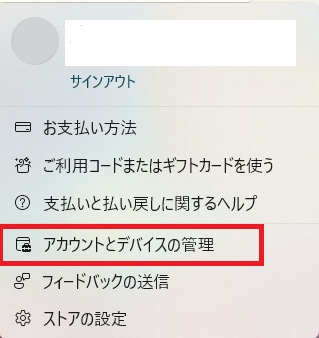
4. The “Microsoft account” page will open in your web browser.
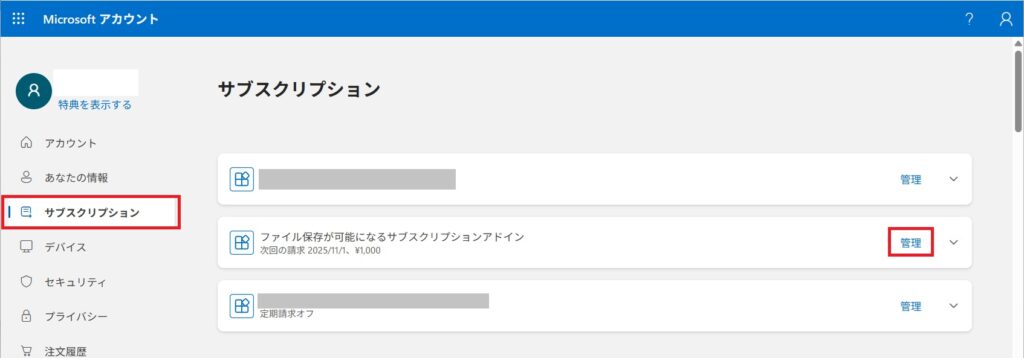
You may be prompted to sign in. Once signed in, look for the “Subscriptions” section under “Account” and select “Manage” for the subscription you wish to cancel.
Note: You can also select “Subscriptions” from the left-hand menu and click “Manage” next to the specific service.
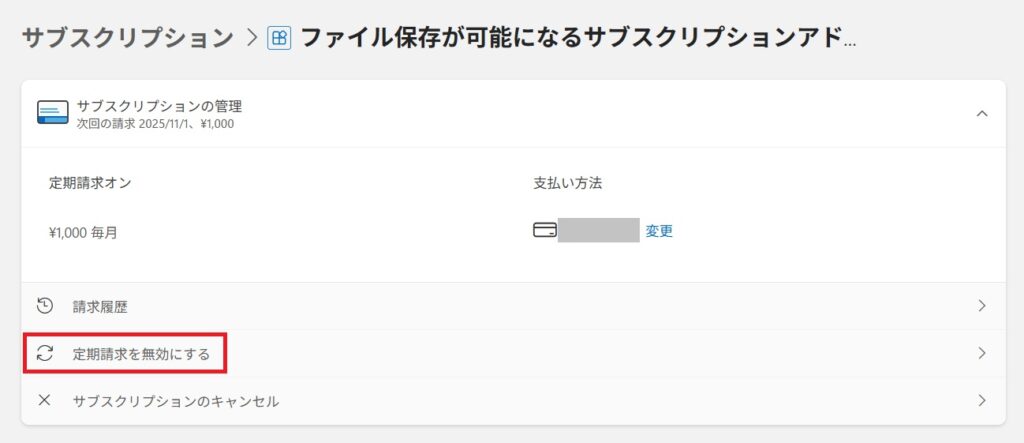
5. Select “Turn off recurring billing.”
6. In the confirmation window, select “Turn off recurring billing” again.
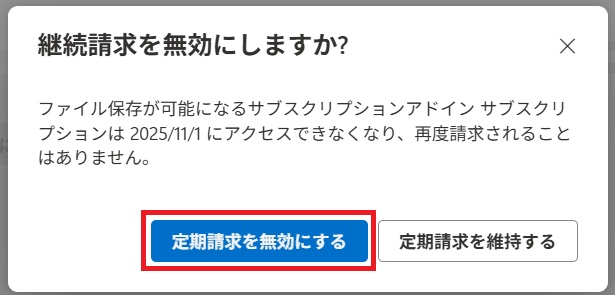
A confirmation message will be displayed, and your subscription cancellation will be processed.